The Problem: Jira logs hours, but finance often doubts their accuracy because standard timesheets miss workflow delays, status changes, and real effort.
The Shift: Teams that want reports finance can trust combine time logging with workflow-aware metrics, capturing both actual work and process delays.
The Fix: Use enhanced Jira timesheet reporting, like Time in Status Reports, to track logged hours, time in each status, and bottlenecks, giving finance clear, verifiable, and actionable insights for billing, payroll, and resource planning.
You’ve opened the Jira issue. The ticket has been sitting in “In Review” for six days. No one flagged it. No alert fired. Sprint velocity looks fine.
This is the gap that Time in Status reporting is designed to close and it’s also where most Jira users hit a wall with JQL.
Jira Query Language (JQL) is powerful. But it has a hard limitation: it cannot directly calculate the total time an issue has spent in a specific status. You can filter by status. You can query the transition history. But summing up cumulative dwell time across multiple status entries? That’s outside what native JQL can do.
This article covers both sides of that equation: what JQL genuinely does well for Time in Status analysis, and where you need a purpose-built plugin to get the numbers that actually matter.
What Is Time in Status, and Why Does It Matter?
Time in Status for Jira is simple in concept: it is the precise duration an issue spends in a single step of your workflow, whether that step is In Progress, Waiting for Review, or Blocked.
It’s the foundational metric behind three of the most important flow measurements in Jira:
Cycle Time: How long from active work start to completion.
Lead Time: How long from issue creation to resolution.
Bottleneck identification: Which status is accumulating dwell time that shouldn’t be?
Want to understand the difference between Cycle Time and Lead Time in Jira and how they impact your workflow? Read our full guide on Cycle Time vs Lead Time to get actionable insights.
While JQL can’t directly calculate Time in Status metrics, it can help filter and organize issues to support analysis. For more detailed reporting, many teams use Jira add-ons that provide calculated fields and enhanced visualization options.
Such as Jira Time in Status Reports by RVS Softek, are often used to supplement JQL for detailed reports, providing the necessary calculated fields and advanced reporting capabilities that native JQL lacks.
What Native JQL Can Actually Do for Time in Status
Before talking about limitations, it’s worth being precise about what JQL handles well. Several query patterns are genuinely useful for Time in Status analysis, but they just don’t give you calculated durations.
Filter Issues by Current Status:
The most direct use case: find everything currently sitting in a specific stage.
status = "In Progress"
Simple, but important. If you’re trying to spot what’s sitting in a stage right now, this is your starting point.
Query Transition History:
JQL’s “status changed” operator lets you query historical transitions, not just the current state.
status changed FROM "To Do" TO "In Progress" DURING ("2024-01-01", "2024-12-31")
This is useful for understanding when work entered a stage, not how long it stayed there. The distinction matters.
Combine Status Filters with Date Functions
Jira’s built-in date functions (‘startOfMonth()’, ‘startOfWeek()’) let you scope queries to time ranges without hardcoding dates.
status = "Done" AND resolved >= startOfMonth()
status CHANGED DURING (startOfMonth(), endOfMonth())
Useful for regular reporting cadences, monthly, weekly, and sprint-scoped.
Filter by Assignee for Workload Analysis
assignee = "john.doe" AND status = "In Progress"
Combined with transition history, this lets you narrow down which team member’s issues are sitting in which stage. It’s a starting point for workload analysis, not a complete picture.
Track All Transitions Within a Period
status CHANGED DURING (startOfMonth(), endOfMonth())
Useful for identifying which issues had any movement, and by elimination, which ones were completely stalled.
Build Targeted Multi-Clause Queries
project = "MyProject" AND status WAS "Code Review" BEFORE "2024-12-01" AND assignee IN ("johndoe", "janedoe")
Multi-clause JQL lets you cross-reference project, status history, assignee, and time range. This is where JQL gets genuinely powerful for pre-filtering analysis work.
Challenges with Native JQL
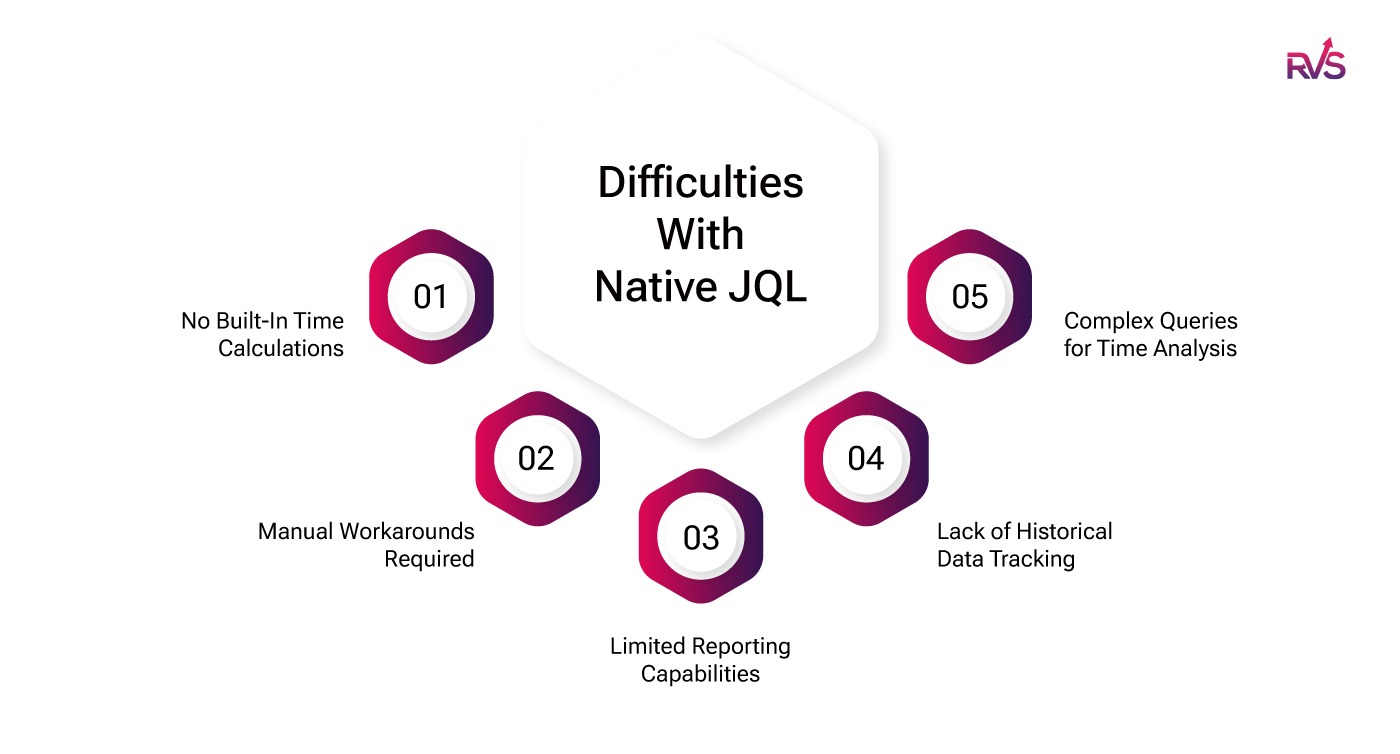
While Jira Query Language (JQL) is a powerful tool for querying data within Jira, it comes with certain limitations, especially when it comes to tracking time spent in different statuses:
No Built-In Time Calculations: Native JQL doesn’t have functions to directly calculate the time an issue spends in a specific status, making it hard to analyze the duration an issue stays in each phase of its lifecycle.
Manual Workarounds Required: To overcome this limitation, users must resort to complex workarounds like custom fields or additional plugins, which can be time-consuming and error-prone.
Limited Reporting Capabilities: JQL alone does not offer the advanced reporting features needed to generate comprehensive time-in-status reports, such as visualizations or breakdowns by user, status, or assignee.
Lack of Historical Data Tracking: JQL cannot track the historical data of how long an issue remained in each status over time, which is essential for detailed project analysis and improving workflow efficiency.
Complex Queries for Time Analysis: Even with advanced JQL techniques, extracting meaningful data about time spent in statuses often requires multiple, complex queries and manual calculations, which reduces efficiency.
To tackle these challenges, many Jira users turn to third-party plugins or integrations that can automatically track time in statuses and offer ready-to-use reports, saving time and effort in the process.
Three Approaches Teams Use to Close the Gap
To overcome the limitations of native JQL and effectively track time spent in different statuses, several powerful solutions are available to generate detailed Time in Status Jira reports.
Here are the most efficient options to generate comprehensive time-tracking reports in Jira:
1. Using Jira Plugins
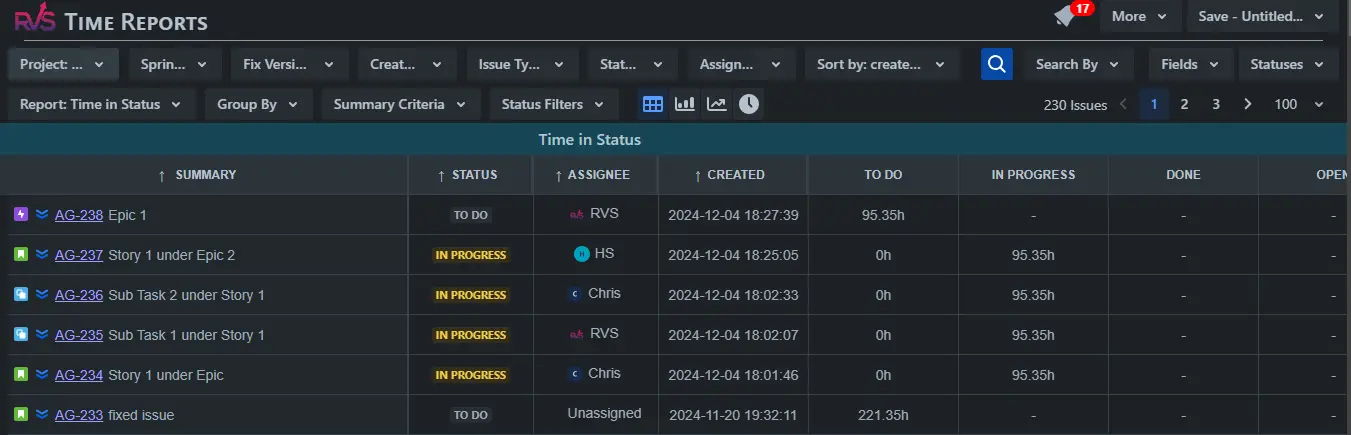
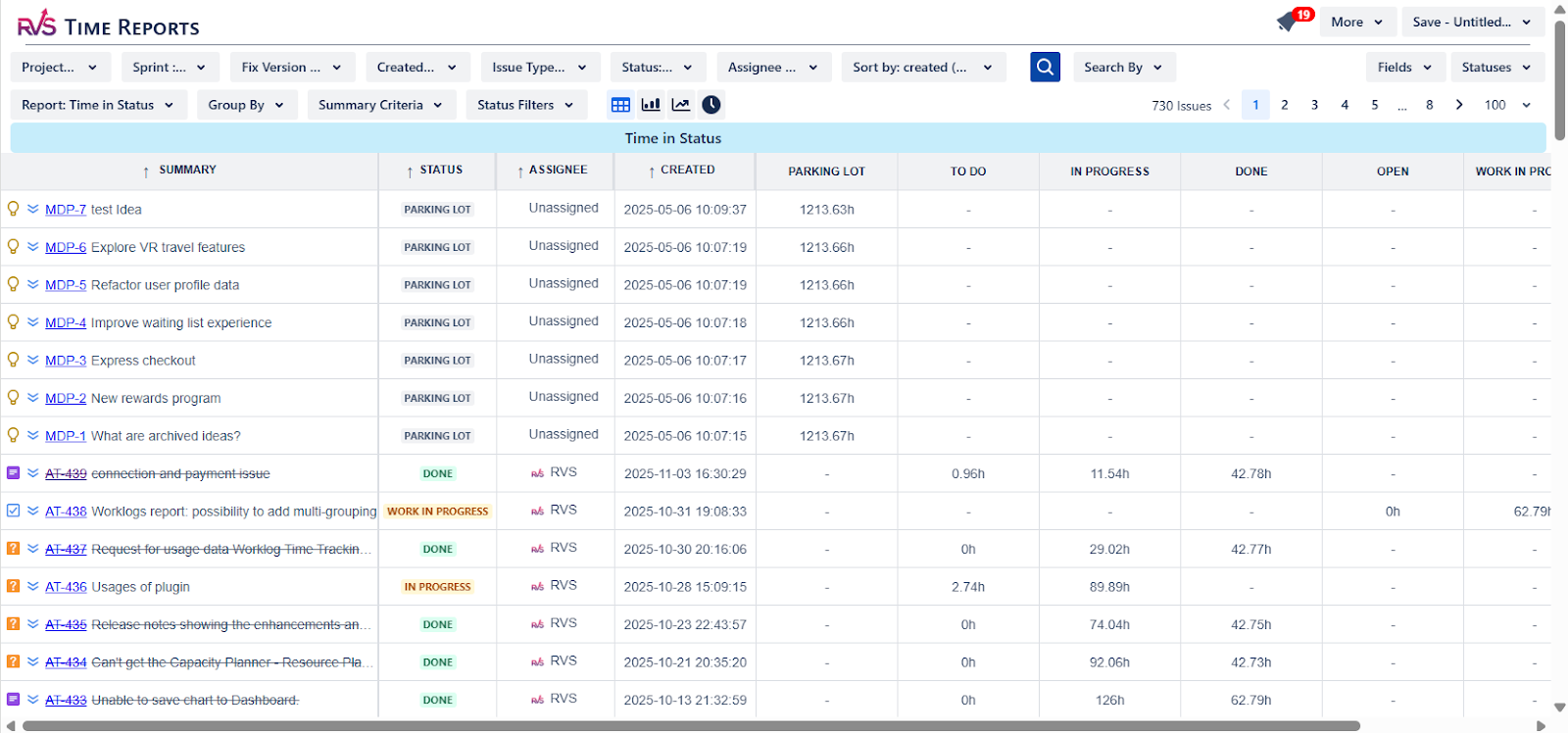
The Time in Status Reports plugin for Jira provides a comprehensive way to track how long issues spend in different statuses throughout their lifecycle. With detailed reports and visualizations, teams can easily identify bottlenecks, optimize workflows, and assess individual performance.
In addition to the Time in Status Report tool by RVS Softek, there are several other Jira planning add-ons available that help further streamline project management. These plugins offer various ways to analyze and manage your Jira data, including:
Jira Time in Status Report: Tracks the time spent by each user in each status, providing clarity on issue progression.
Time with Assignee per status: Monitors the time each assignee spends on issues, allowing for better resource management.
Status Count: Displays how many times each issue has transitioned between statuses, offering insights into workflow dynamics.
Average Time in Status: Measures the average time spent in each status across multiple issues, helping teams identify areas for improvement.
Transition Reports: Provides a detailed analysis of issue transitions, showing who made each status change and when.
The images below show that the app is extremely feature-rich to meet a variety of use cases. Also, the app supports a dark theme too.
2. Using Automation Rules
Jira’s automation rules can help track time in status Jira:
Create Custom Fields
Create custom fields like “Time in Progress” to store time spent in a status.
Set Up Automation Rules
Use triggers and actions to calculate and update time spent in a status.
Example Rule:
Trigger: Status changes from “In Progress.”
Condition: Issue matches specific criteria.
Action: Update the custom field using smart values like {{now.diff(issue.statusCategoryChangedDate) hours}}.
3. Use Jira Rest APIs
Another option could be to write your own custom solution using Jira Rest API's. However, this could be a lengthy and time taking project.
RVS Time in Status Report: Advanced Time Tracking Add-on for JQL
RVS Time in Status Report is the dedicated time tracking add-on for Jira Query Language (JQL) that teams need for deep workflow analysis. While native JQL excels at filtering issues, it lacks the capability to directly calculate and filter issues based on the total time spent in a specific status over its lifespan.
This tool seamlessly integrates with Jira, transforming basic historical data into JQL-queryable time metrics in real-time. By supplying the necessary calculated fields (like total time in In Progress or Waiting for Review), RVS Time in Status Report unlocks powerful new filtering and reporting capabilities.
Key Features of RVS Time in Status Report
JQL-Enabled Time Filtering: Creates calculated custom fields (like total time in a status) that are directly queryable using standard JQL. This allows filtering issues based on duration, such as finding tickets with "Time in Review" > 48h.
Detailed Time Reports: Generate essential reports like Time in Status Report, Average Time in Status, Time with Assignee, and Cycle/Lead Time analysis.
Custom Status Grouping: Allows you to combine multiple statuses (e.g., 'In Dev,' 'Unit Testing,' 'Code Review') into custom groups like 'In Progress' to measure true cycle time accurately.
Configurable Time Calculations: Offers flexibility to choose working calendars, excluding non-working hours, weekends, or holidays from calculations for highly accurate metrics.
Real-Time Dashboard Gadgets: Easily embed Time in Status reports and charts directly onto your Jira dashboards for immediate, visual bottleneck detection.
Multiple Data Exports: Provides flexible options to export detailed time data to CSV, Excel, or JSON Feed (for integration with BI tools like Power BI).
Crafting JQL Queries for Time in Status Jira
Here are steps and examples to create effective JQL queries for Time in Status Jira analysis:
1. Filter by Status
You can filter issues currently in a specific status to analyze trends or identify stuck items:
status = "In Progress"
This query returns all issues currently in the "In Progress" status.
2. Filter by Transition History
JQL allows you to query issues that have been in or transitioned through certain statuses:
Status changed FROM "To Do" TO "In Progress" DURING ("2023-01-01", "2023-12-31")
This query finds issues that transitioned from "To Do" to "In Progress" during the specified time period.
3. Use Date Filters
Combine status filters with date functions to focus on recent activities:
status = "Done" AND resolved >= startOfMonth()
This query finds issues resolved in the current month.
4. Search by Assignee or Reporter
Narrow down results to a specific individual for accountability or workload analysis:
assignee = john.doe AND status = "In Progress"
This query identifies issues assigned to John Doe in the "In Progress" status.
5. Track All Status Transitions Within a Time Range:
status CHANGED DURING (startOfMonth(), endOfMonth())
This identifies all issues that transitioned through any status in the current month.
6. Filter by Custom Time Fields (if set up):
Combine custom date fields for granular control:
"In Progress Start Time" >= startOfWeek(-1) AND "In Progress Start Time" <= endOfWeek(-1)
This query identifies issues that were entered "In Progress" last week.
7. Combining Filters for Detailed Insights
Combine multiple JQL clauses to refine your queries further:
project = "MyProject" AND status WAS "Code Review" BEFORE "2023-12-01" AND assignee IN ("johndoe", "janedoe")
This query retrieves issues from "MyProject" that were in "Code Review" before December 2023 and assigned to specific users.
Conclusion
While native JQL has limitations, various solutions, including plugins, automation, and external analysis, enable detailed and actionable reporting. And by leveraging Jira time in the status report by RVSSoftek, teams can gain deeper insights into their processes and drive continuous improvement.
Whether you’re a project manager aiming to optimize workflows or a team lead monitoring performance, mastering time-in-status reporting with JQL and its enhancements is a valuable skill. Start with basic queries, explore advanced plugins like Time in status report, and integrate automation to unlock the full potential of Jira for your team.
Ready to improve your workflow? Book your RVS demo today.
Frequently asked questions
1. What is JQL, and how does it relate to Time in Status reports?
JQL (Jira Query Language) is a powerful query language used in Jira to filter and extract specific issue data. When combined with Time in Status reports, JQL allows you to refine your search and track how long issues have spent in each workflow status.
2. How do I use JQL to track time spent in each Jira status?
To track time in status with JQL, you can use the status field in your queries along with custom fields like timeSpent or timeInStatus. This allows you to filter issues and analyze how long they stay in each status.
3. Can I create custom Time in Status reports using JQL?
Yes, JQL enables you to create custom reports by specifying filters like project, assignee, status, and time spent. You can then export this data into a Time in Status report to analyze the efficiency of your workflow.
4. What are some useful JQL filters for Time in Status tracking?
Common JQL filters include:
1. status = "In Progress" AND updatedDate >= -7d to track issues in "In Progress" status in the last week.
2. status changed TO "Done" DURING (startOfDay(-7), endOfDay()) to see when issues were completed in the past week.
5. How can JQL help identify workflow bottlenecks in Time in Status reports?
By filtering issues that remain in a particular status longer than expected, JQL can help identify bottlenecks. For example, status = "In Progress" AND timeInStatus > 2d would show issues that have been stuck in the "In Progress" status for over two days.
6. Can JQL be used to measure the performance of individual team members in Time in Status?
Yes, you can use JQL to filter issues by assignee and measure how long each team member’s issues spend in each status. For example, assignee = "John Doe" AND status = "In Review" AND timeInStatus > 1d tracks John's issues in the "In Review" status.
7. Are there any limitations to using JQL for Time in Status reports?
While JQL is powerful, it has limitations in terms of direct time tracking capabilities. It doesn't natively support advanced time tracking fields like "time in status" without additional plugins (e.g., RVS Time in Status plugin) that extend Jira’s functionality.
Recent Blogs
July 23, 2026
Jira Time in Status Report: Complete Guide for Project Managers





.webp)





