Learn how to read and optimize a time tracking report in Jira to uncover workflow bottlenecks and improve delivery speed. This guide explains worklogs vs Time in Status and shows how tools like RVS Time in Status Reports help teams turn Jira data into actionable insights.
In Jira, teams log hours and move tickets across the board, yet many still struggle to explain where time is actually being spent. That’s because most teams record time but rarely analyze the time tracking report in Jira.
Jira supports two ways to track time. The first is worklog-based tracking, where users log the hours spent on tasks. The second is workflow-based tracking, which measures how long issues remain in statuses like To Do, In Progress, or Done.
While worklogs capture effort, they don’t reveal where work slows down in the workflow. That insight comes from analyzing how long issues stay in each status.
The solution? A dedicated Time in Status plugin for Jira that offers custom features and provides the valuable insights project managers need to optimize workflows, improve efficiency, and keep projects on track.
In this guide, you’ll learn how to read, interpret, and optimize the time tracking report in Jira so you can identify bottlenecks, improve forecasting, and make better project decisions.
What Is a Time Tracking Report in Jira?
A time tracking report in Jira helps teams understand how time is spent across tasks and workflow stages. It gives project managers visibility into effort, progress, and delays during a project.
In Jira, time can be tracked in two main ways:
Worklog-based tracking – where team members manually log the hours spent on tasks. This helps measure effort but depends on users consistently updating their logs.
Workflow-based tracking (Time in Status) – which measures how long issues remain in workflow stages such as To Do, In Progress, or Done.
While worklogs show how much time was spent working, Time in Status shows where work actually slows down in the workflow. This makes it a more actionable metric for project managers and Scrum Masters trying to identify bottlenecks and improve delivery timelines.
Common Challenges in Jira Time Tracking Reports
Some of the most common challenges faced by project managers when using Jira’s time tracking features include:
Difficulty in Interpreting Data: Jira provides a lot of data about time spent in statuses like "To Do" and "In Progress," but it can be hard to understand what this data means and how to turn it into actionable insights. Without clarity, decisions may be based on assumptions rather than facts.
Identifying Bottlenecks and Delays: Bottlenecks often cause project delays, but pinpointing where these issues are occurring in Jira can be tricky. Without proper analysis, it’s hard to address inefficiencies and prevent them from affecting the project’s progress.
Overwhelming Amounts of Data: Jira collects data from multiple sources, which can overwhelm project managers. With so much information, it’s easy to get lost and difficult to extract the key insights needed to optimize timelines and resources.
How can the Jira Time in Status Plugin Can Help?
In all the above cases, the root cause is often a lack of visibility and control over time in Jira’s workflow.
So, a Jira Time in Status plugin can help by automatically collecting and presenting data in intuitive ways, allowing teams to catch small delays before they turn into bigger problems.
To get Time in Status Reports and make the most of this powerful feature for Jira, you need a dedicated Jira plugin. And RVS Time in Status Report is the perfect solution, offering advanced capabilities to track and visualize time spent across different workflow stages, helping you optimize your project management processes and improve overall efficiency.
Optimize Time Tracking Reports in Jira with RVS Time in Status Reports
RVS Time in Status Report offers a comprehensive solution for project managers by providing customizable, real-time time tracking reports. Whether you're filtering by project, sprint, assignee, or fix version, RVS Time in Status automatically fetches the data, helping you make better, data-driven decisions.
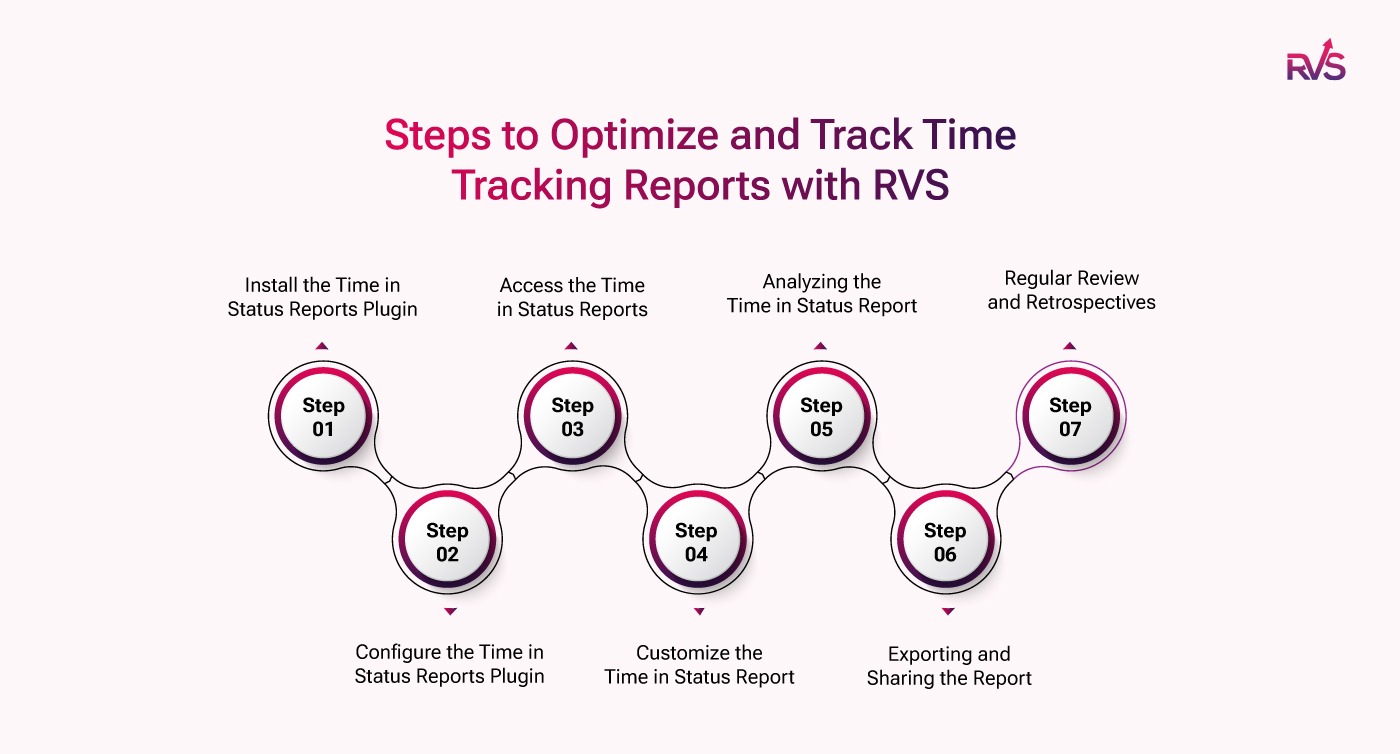
Now, let’s understand how to optimize time tracking reports with Time in Status Report by RVS:
Step 1: Install the Time in Status Reports Plugin
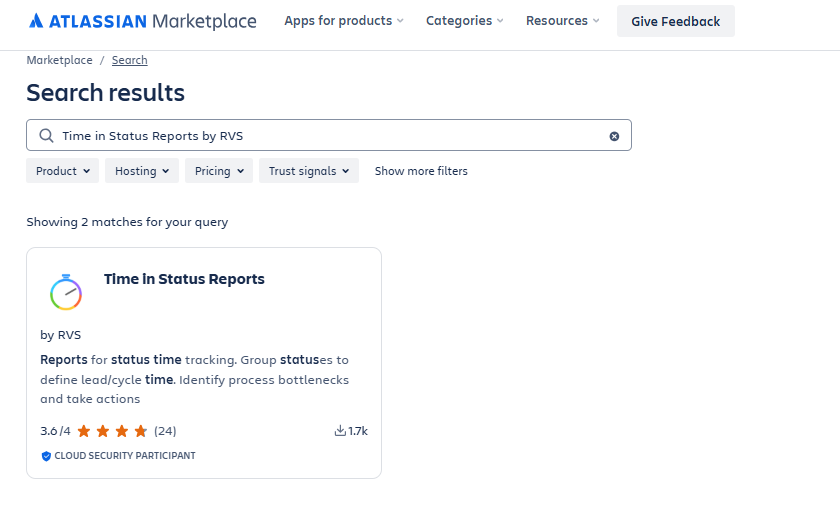
First, install the Time in Status Reports plugin from the Atlassian Marketplace:
Go to Jira > Apps > Find new apps.
Search for Time in Status Reports by RVS
On the app's page, click Try it free or Get it now.
Select the Jira instance you want to install the app on and click Continue.
Step 2: Configure the Time in Status Reports Plugin
Once the plugin is installed, configure it to start using the reports:
Go to Jira > Apps > Time in Status Reports.
Enable Plugin for Projects:
Choose the Jira projects or issue types where you want to track time in status.
Configure Workflow Statuses:
In the plugin settings, define which workflow statuses (e.g., "To Do," "In Progress," "Done") will be tracked.
This will ensure that time spent in each status is automatically logged.
Permissions:
Make sure that the right Jira roles (admin, project manager, etc.) have permission to access the time tracking data.
Step 3: Access the Time in Status Reports
Once the plugin is configured, you can start using the Time in Status report.
Navigate to your Jira Project Dashboard.
Click on the Time in Status Reports button in the top menu or sidebar.
If you don't see it, check if it's available under Reports or Project Reports.
Step 4: Customize the Time in Status Report
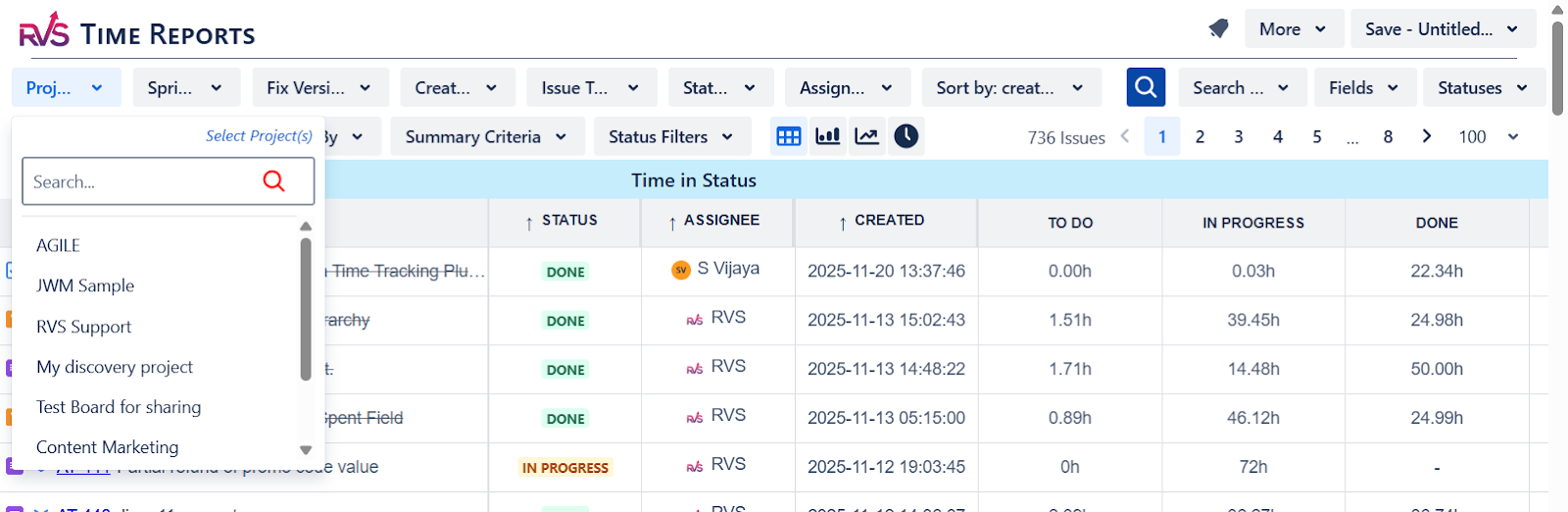
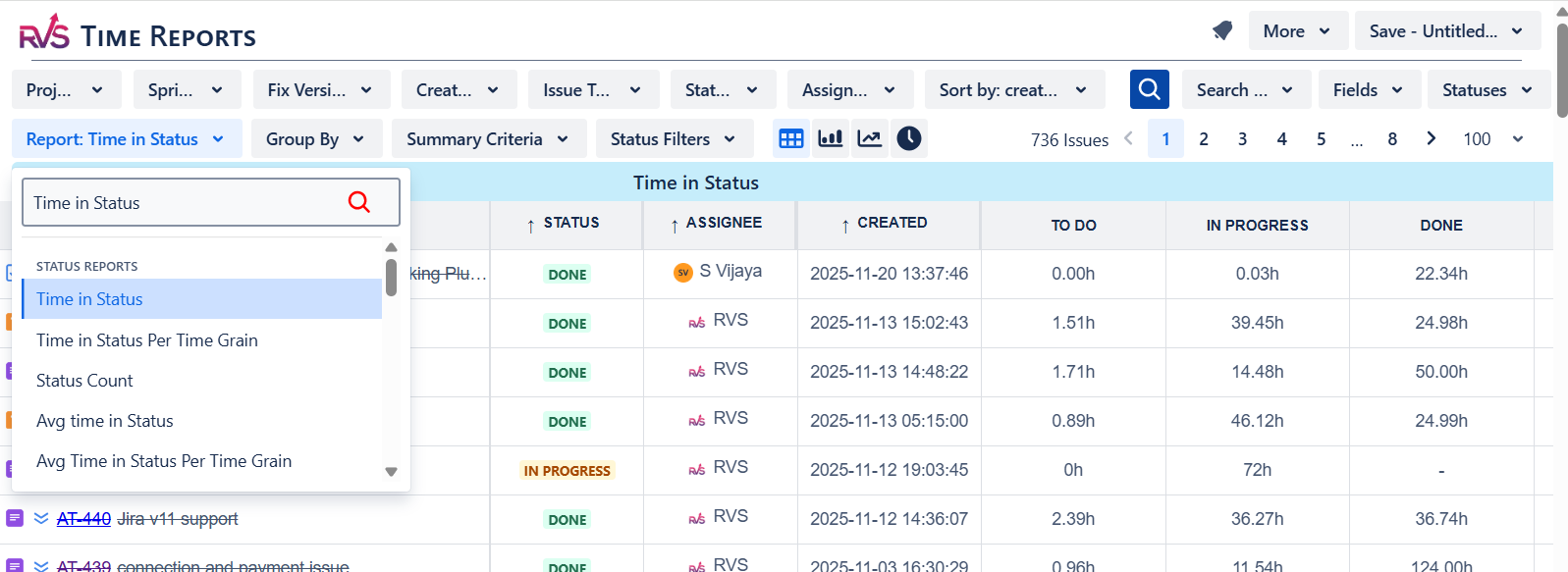
Now you can customize the report to show the data you need. RVS Time in Status Report allows you to get valuable insights on complex sprints and issue types that help you to make better decisions:
Select Your Filters:
Project: Choose the relevant project(s) you want to generate the report for.
Sprint/Version: Filter by sprint or release version if needed.
Assignee: Filter by assignee to track how much time each person is spending on issues.
Issue Type: Filter by specific issue types like bugs, tasks, epics, etc.
Date Range: Set a specific date range to view the data for that period.
Choose Time Tracking Options:
Time Spent in Each Status: Select specific statuses to track the time spent on.
Time with Assignee per status: This will show how much time was spent by each assignee for each issue.
Apply Filters: After selecting the filters and tracking options, click search to generate the report.
Step 5: Analyzing the Time in Status Report
The report will display key data:
Total Time Spent in Each Status: It shows how much time an issue has spent in each workflow status. This helps identify bottlenecks.
Example: If an issue is spending too much time in the "In Progress" stage, it indicates a potential workflow bottleneck.
Time by Assignee: The report will show the total time each team member has spent on issues. This is useful for workload distribution.
Time Spent by Issue Type: Compare the time spent on different issue types (e.g., feature development vs. bug fixing).
Bottleneck Identification: Look for statuses where issues tend to linger for too long. These are areas where you can optimize your workflow.
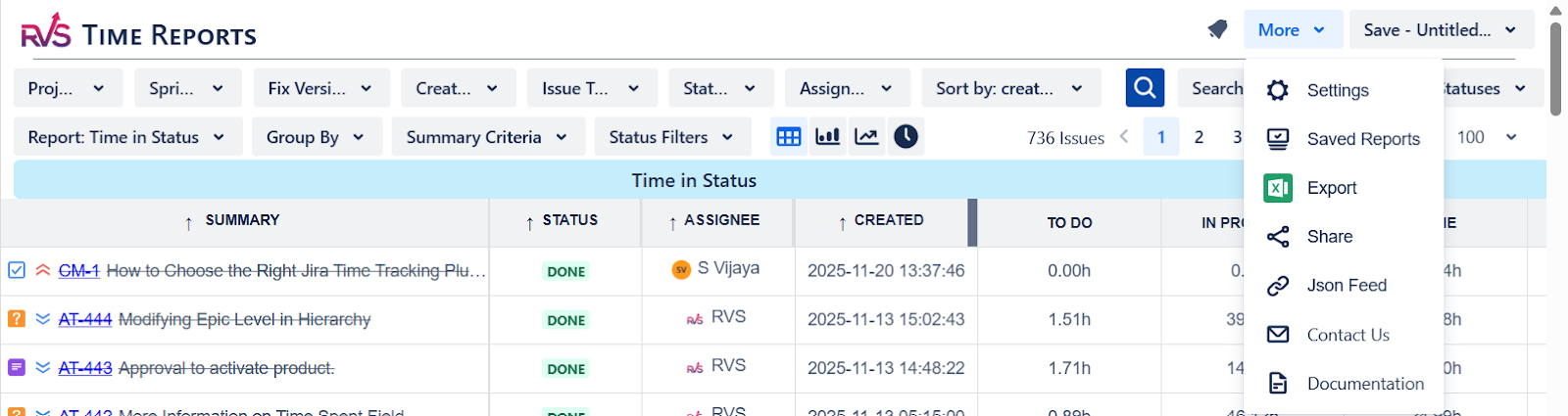
Step 6: Exporting and Sharing the Report
Once you’ve generated the report, you can export it for sharing:
Export the Report: You can export it in formats like CSV for further analysis or to share with stakeholders.
Share the Report: Send the exported report to your project stakeholders, team leads, or managers.
Step 7: Regular Review and Retrospectives
To continuously improve, incorporate time tracking data into your Sprint Retrospectives:
Review Reports Regularly: Make it a habit to review time tracking reports at the end of every sprint to uncover inefficiencies.
Discuss Bottlenecks: During retrospectives, focus on the issues that spent excessive time in certain statuses and make changes accordingly.
Types of RVS Time in Status Reports:
Here are some other key Time in Status reports that RVS’s Time in Status Report Plugin provides you to streamline your sprint decisions and improve results:
Time in Status Count: Aggregates the total time spent in each status, pinpointing where delays occur.
Time with Assignee per Status: Tracks time spent in each status by team members, highlighting productivity issues or roadblocks.
Average Time in Status: Calculates the average time all issues spend in a status, helping spot trends and areas for improvement.
Best Practices for Optimizing Time Tracking Reports
Whether you use a plugin or attempt to improve native reports, successful optimization relies on these practices:
Regularly Update Time Estimates: Encourage team members to adjust the Time Remaining estimate as they work. This ensures reports reflect the most realistic view of project progress.
Integrate Time-in-Status Tools: Leverage specialized tools like RVS Time in Status Report to transform data overload into actionable insights, focusing on process efficiency rather than just labor hours.
Customize Reports for Your Needs: Don't rely on default views. Filter and customize reports to specifically track key performance indicators (KPIs) like cycle time, lead time, or status transition times.
Conclusion
Jira time tracking reports are invaluable, but they require proper understanding and optimization to unlock their full potential. By focusing on data consistency, mastering core metrics, and utilizing advanced tools like RVS Time in Status Report to track time within specific workflows, you can improve project visibility, allocate resources effectively, and significantly enhance team efficiency.
Start optimizing your Jira time tracking today—try RVS Time in Status for enhanced reporting and project efficiency!
Ready to improve your workflow? Book your RVS demo today.
Frequently asked questions
1. What is RVS Time in the Status Report?
RVS Time in Status Report is a Jira integration that tracks the amount of time an issue spends in each workflow status, providing project managers with real-time insights into task progress and bottlenecks.
2. How can RVS Time in Status help with sprint management?
It helps project managers identify delays, optimize resource allocation, and make data-driven decisions by providing detailed reports on where time is actually spent within the workflow statuses.
3. Can I filter the Time in Status reports by specific parameters?
Yes, RVS Time in Status allows for customizable filters, enabling you to analyze reports by assignee, project, sprint, fix version, and other criteria to meet your specific needs.
4. Is the data in the RVS Time in Status report updated in real-time?
Yes, the data is automatically fetched and updated in real-time, ensuring you always have access to the most accurate and up-to-date insights.
Recent Blogs
July 23, 2026
Jira Time in Status Report: Complete Guide for Project Managers






.webp)





