In this blog, we explore Dark Mode in Jira, its benefits such as reduced eye strain and improved battery life, as well as its potential drawbacks. Learn how to enable dark mode in Jira and enhance your user experience while working in a comfortable and energy-efficient environment.
Let’s be honest: Staring at a blinding white screen at 4:00 PM is a recipe for a headache. For years, the community has been "hacking" their way to a darker UI using buggy browser extensions and custom CSS just to get some relief. But Dark mode in Jira is more than just a "cool" aesthetic update—it’s a survival tool for the modern power user.
When you spend eight hours a day managing sprints, tracking tickets, and navigating complex workflows, the interface shouldn't feel like a flashlight pointed at your retinas. This shift isn't just about following a design trend; Dark mode in Jira is about reducing eye strain, saving your laptop's battery life, and finally making your dashboard look as sleek as your IDE.
If you’ve been waiting for a workspace that’s as easy on the eyes as it is on the brain, it’s time to flip the switch. Here is how Dark mode in Jira is changing the game for productivity and why your eyes (and your sleep cycle) will thank you for it.
What Is Dark Mode?
Dark mode in Jira, also known as night mode, is a display setting where the background of an interface is dark (typically black or deep gray) and the text is light (usually white or light gray). This contrasts with the standard "light mode," where the background is light, and the text is dark. Essentially, dark mode in Jira is the inversion of the typical light background, providing an alternative aesthetic and functional choice for users.
The rise of dark mode in Jira can be traced back to its roots in the early days of computing. Early computer monitors used CRT screens that emitted light, meaning black backgrounds and bright text were easier on the eyes. However, as displays evolved and transitioned to LCD and OLED screens, the light mode became the standard. Now, thanks to increased understanding of user preferences and technology improvements, dark mode in Jira has made a resurgence.
The Popularity Surge of Dark Mode:
Dark mode in Jira has seen an incredible surge in popularity, largely driven by its integration into the operating systems we use every day. Early adopters were primarily tech enthusiasts and developers who spent years hunting for custom tweaks just to enable a dark theme. But as mainstream giants like Facebook, Twitter, and YouTube flipped the switch, the feature went from a "niche hack" to a global standard.
However, for those in the trenches of software development, this isn't just about following the herd. According to The Small Business Blog, 70% of software professionals globally find that Dark mode in Jira and their IDEs makes it easier to code for more extended periods.
How Dark Mode Enhances Your Experience
While some researchers discovered that energy savings can be modest—with only 3% to 9% of energy saved when moving from low to mid-brightness (Android Authority)—the real "power saving" is happening in your brain.
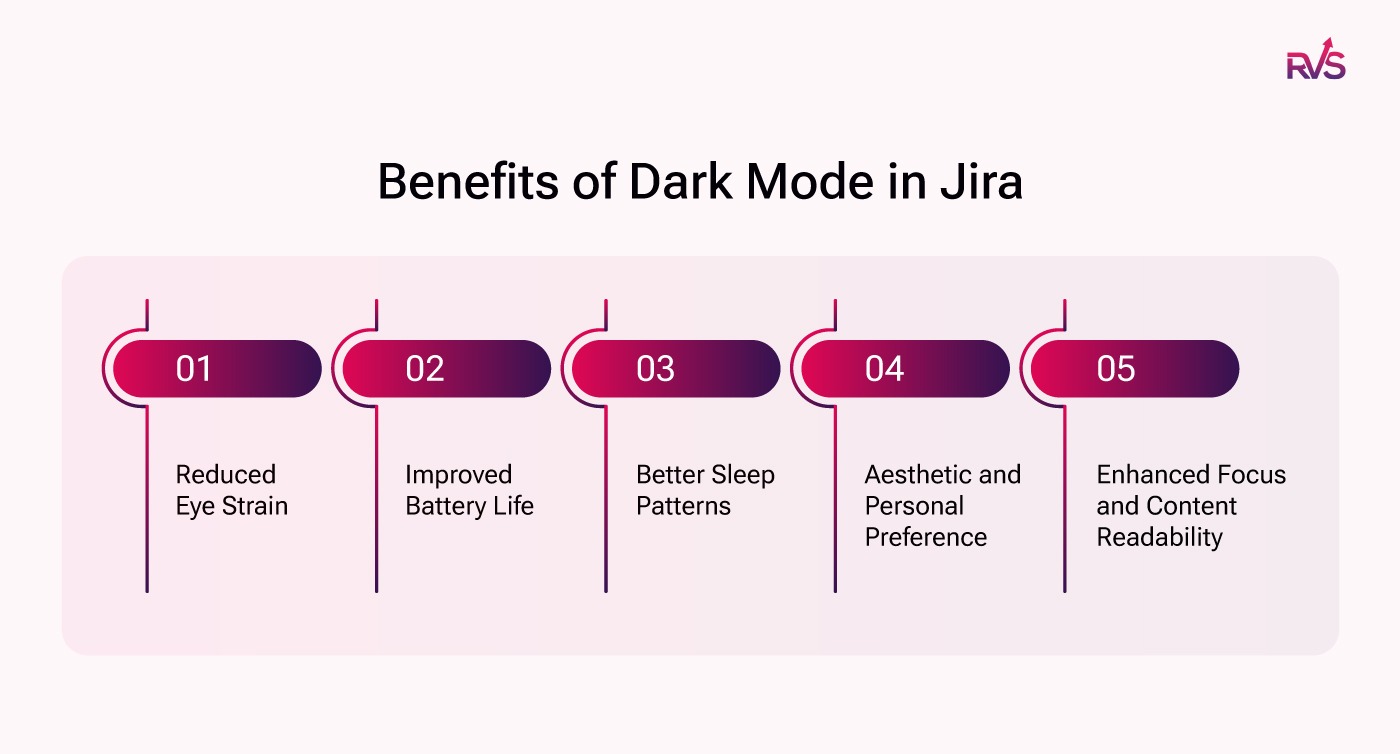
From reducing eye strain to saving battery life, dark mode offers practical advantages, especially for those who spend long hours in front of screens. Here’s why you should consider making the switch:
Reduced Eye Strain:
One of the main reasons for the popularity of dark mode in Jira is its potential to reduce eye strain. Many people experience eye fatigue from prolonged exposure to bright screens, particularly in low-light conditions. Bright screens can cause the eyes to work harder, leading to discomfort, headaches, and dry eyes.
By reducing the amount of light emitted from the screen, dark mode in Jira can alleviate this issue, especially in dim environments. The darker background reduces glare and limits the contrast between the screen and the surrounding environment, making it more comfortable for users to focus for extended periods. This is particularly useful for people who spend hours working on computers or mobile devices.
Improved Battery Life:
For devices with OLED (Organic Light Emitting Diode) displays, dark mode in Jira can have a significant impact on battery life. Unlike traditional LED screens, OLED displays emit light on a pixel-by-pixel basis, meaning that when a pixel is black, it is turned off. As a result, when you use dark mode in Jira, fewer pixels are lit up, leading to a decrease in energy consumption.
This reduction in power usage can extend battery life, which is particularly beneficial for mobile devices such as smartphones, tablets, and laptops. Users who are concerned about battery life during long trips or when they’re away from a charger might find dark mode to be a useful option.
Better Sleep Patterns:
The relationship between screen time and sleep has been a subject of growing concern. Research has shown that exposure to blue light, which is emitted by screens, can interfere with the production of melatonin, the hormone responsible for regulating sleep. This disruption can make it more difficult to fall asleep, especially if you use your phone or computer late at night. How to enable dark mode in Jira could potentially reduce the negative effects of blue light.
Aesthetic and Personal Preference:
Many users prefer Jira in dark mode due to its sleek and modern aesthetic. It’s often associated with a more relaxed, less intrusive design that emphasizes minimalism. For many, it offers a refreshing change from the traditional light interface. As a result, dark mode has become a popular choice for those who appreciate a more stylish, contemporary look.
Additionally, some users simply prefer the appearance of dark mode over light mode. The darker background provides a visual break from the typically bright, white screens, which can sometimes feel overwhelming or harsh, especially in low-light environments. Jira in dark mode provides an elegant, calming atmosphere, making it particularly suitable for use in the evening or in dimly lit spaces.
Enhanced Focus and Content Readability:
Another reason people gravitate towards dark mode in Jira is its potential to improve focus, especially when reading long texts or working on projects. The dark background can help reduce distractions by creating a more immersive reading experience. For many users, this contributes to increased productivity, particularly when engaging with text-heavy tasks, such as coding or writing.
Additionally, dark mode in Jira may help reduce visual fatigue by improving contrast between the text and background. For instance, light-colored text on a dark background can appear sharper and clearer, making it easier for users to read and process information.
The Drawbacks of Dark Mode:
While dark mode offers several benefits, it’s not always the best option for every situation. There are some drawbacks that can affect readability, color accuracy, and overall user experience. Let’s explore the limitations of dark mode and when it might not be the ideal choice.
Readability Issues:
Despite its appeal for certain use cases, dark mode in Jira isn’t always the best option for all types of content. For instance, reading long passages of text (such as articles or books) may be more challenging in dark mode in Jira due to the reduced contrast between the text and the background. Some studies suggest that black text on a white background provides better readability, especially for prolonged reading.
Dark mode in Jira may also affect color perception, making it harder to distinguish certain colors or details, particularly in apps related to design or image editing. For those working in these fields, light mode may remain the superior choice for maintaining accuracy and clarity.
Not Always Ideal for Daytime Use:
While dark mode in Jira is beneficial in dimly lit environments, it can be less effective in well-lit spaces. In bright surroundings, light mode may offer better visibility and overall user experience. The contrast of a light background with dark text is more noticeable, making it easier to read in environments with plenty of ambient light, such as offices or outdoor settings.
Some users may also experience difficulty adjusting between dark and light modes depending on their environment, which could lead to visual discomfort or a sense of imbalance when switching between modes throughout the day.
Color Accuracy and Design Limitations:
For graphic designers and creatives, dark mode in Jira may affect the way colors appear on a screen. Dark backgrounds can distort the vibrancy of colors, making it difficult to judge design elements accurately. Some designs, such as those involving intricate details or high contrast, may be better suited for light mode.
Accessibility Considerations:
While dark mode in Jira is touted as being beneficial for many, it is important to remember that not everyone may benefit from it equally. For individuals with certain visual impairments, such as low vision or astigmatism, Jira in dark mode can actually exacerbate issues like blurriness or contrast sensitivity. Some users may find dark mode in Jira difficult to read due to the increased contrast between text and background.
Developers are becoming more mindful of these issues, implementing features like customizable text size, contrast settings, and color schemes that can provide more accessibility options for users.
The Future of Dark Mode:
As technology continues to evolve, dark mode in Jira is likely to remain a significant feature of digital interfaces. We may see even more advanced implementations in the future, such as dynamic modes that adjust based on ambient lighting or the time of day. There's also the potential for enhanced customization, allowing users to fine-tune dark mode settings to better suit their preferences.
Moreover, the increasing focus on accessibility means that developers will likely continue to refine dark mode, ensuring it is usable by a wider variety of people. Tools like adaptive contrast, colorblind-friendly palettes, and automatic switching could become standard features, making dark mode both user-friendly and inclusive.
Dark Mode in Jira:
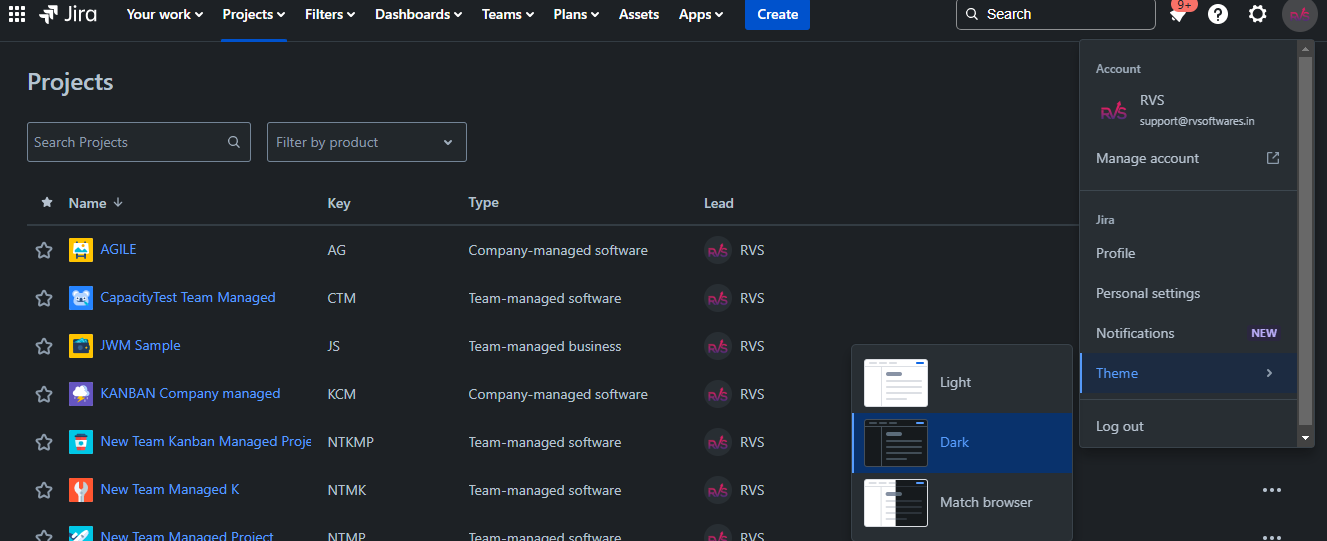
To switch to dark mode in Jira, you should click on the icon of your profile photo in the top right corner of your screen. Choose the “Theme” option, and select the option "Dark" theme. This simple toggle can change your entire Jira interface to a darker mode, helping reduce eye strain during long working hours. Set Jira to dark mode whenever you need a more comfortable working environment, especially if you're working in low-light conditions.
RVS Jira Apps support Dark Mode
RVS Softek Jira Apps support Dark Mode and are fully optimized for teams working in dark mode in Jira.
All our popular apps in the Atlassian Marketplace support dark mode
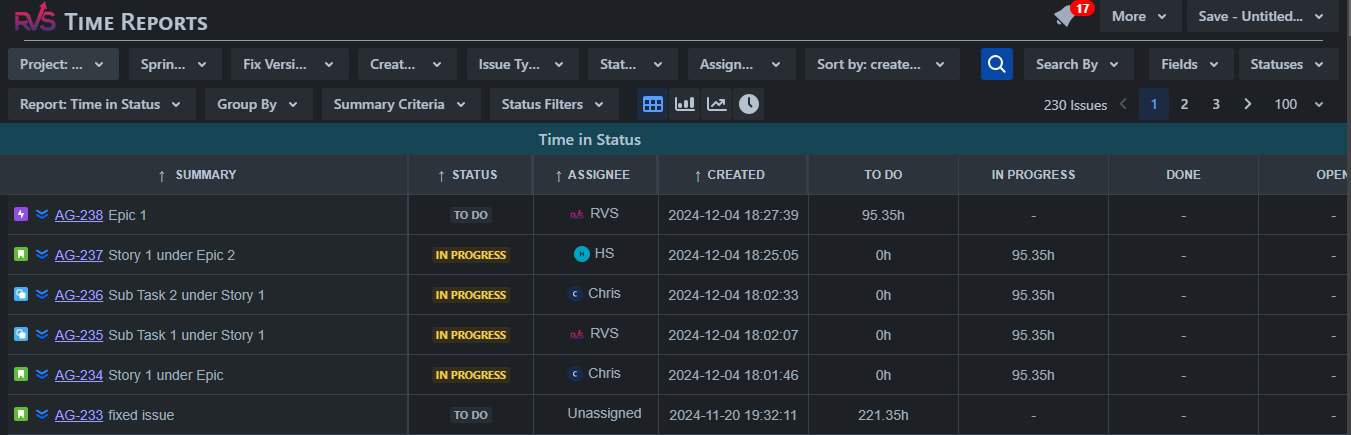
Time in Status Reports
RVS Time in Status Report shows how long each issue has spent in your workflow statuses. It helps to make urgent decisions regarding team workflow steps, especially when reviewing reports in Jira in dark mode.
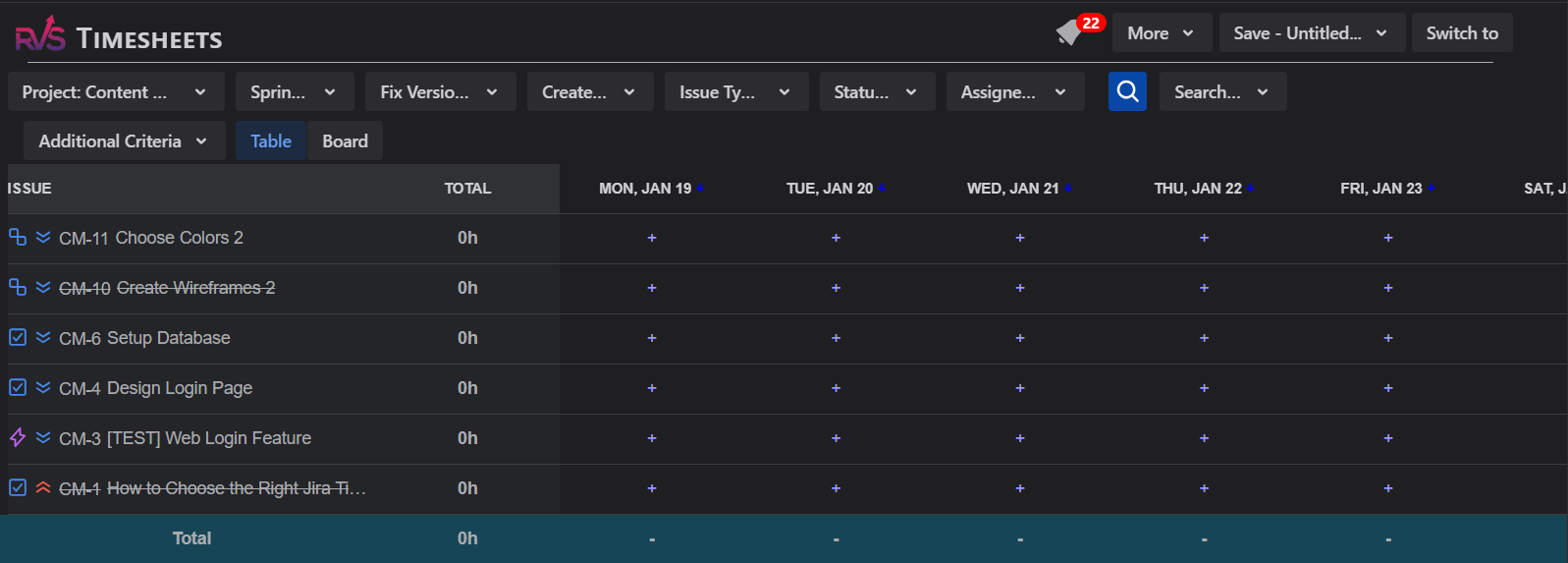
Worklog Time Tracking & Timesheets
Streamline your time tracking in Jira. Easily log work, customize filters, and manage timesheets to boost efficiency in Jira in dark mode.
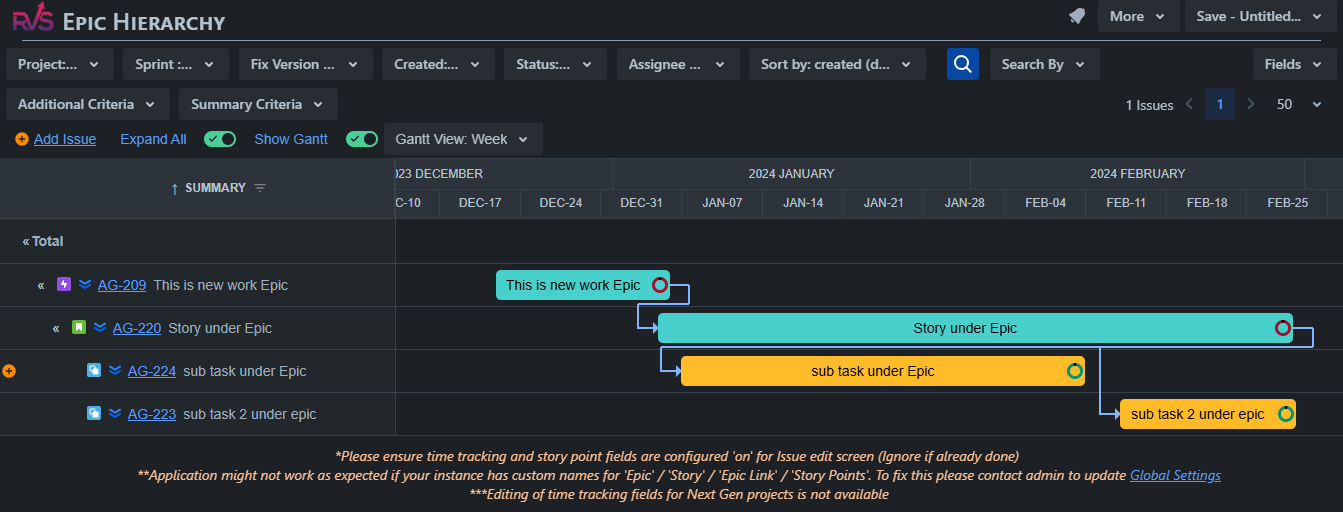
Agile Tools
View the full Jira Issue Type hierarchy of Linked issues, Portfolio/Advanced Roadmaps, Epics, and Subtasks up to 10 levels, all accessible while working in dark mode in Jira.
Conclusion:
Dark mode is much more than a design trend; it is a functional and aesthetic choice that many users now expect across devices and applications. With its potential to reduce eye strain, save battery life, and even improve sleep, it’s clear why dark mode has gained such widespread appeal.
However, it’s important for users and designers alike to consider its drawbacks and ensure that it remains a customizable and accessible option for everyone. As technology advances, dark mode will continue to be refined, making it an even more integral part of our digital experience.
Frequently asked questions
1. What is dark mode in Jira?
Dark mode in Jira is a display setting where the background is dark (usually black or gray), and the text is light, reducing eye strain and improving focus, especially during extended usage.
2. How can I set Jira to dark mode?
To set Jira to dark mode, click on your profile icon in the top right corner, select "Theme," and choose "Dark" to switch your interface to a darker, more comfortable theme.
3. What are the benefits of using dark mode in Jira?
Dark mode in Jira helps reduce eye strain, improves battery life on OLED screens, and provides a sleek, modern look. It can also potentially enhance focus and readability for users working long hours.
4. Does dark mode save battery life in Jira?
Yes, dark mode in Jira can save battery life, especially on devices with OLED displays, as dark pixels use less power by turning off the pixels entirely, making it more energy-efficient.
5. How do I enable dark mode in Jira?
To enable dark mode in Jira, go to your profile settings, click on the "Theme" option, and select "Dark." This will switch the interface to a darker theme, reducing eye strain and improving visibility.
6. What are the drawbacks of dark mode in Jira?
Some users may find that dark mode in Jira affects readability, particularly when reading long passages of text. It can also impact color accuracy, making it harder for designers to distinguish colors.
7. Can I switch back to light mode in Jira?
Yes, you can easily switch back to light mode in Jira by going to your profile settings, selecting "Theme," and choosing the "Light" option, returning to the standard interface.
Recent Blogs
July 23, 2026
Jira Time in Status Report: Complete Guide for Project Managers




.webp)





