● The Problem: Jira only gives you Original Estimate, Remaining Estimate, and Time Spent. No billable tagging, no cross-project timesheet view, no percentile math, no status-duration breakdown.
● The Insight: A time tracking report is really answering one of two separate questions: how much time was logged, or where the time actually went in the workflow. Native Jira can't answer either one with any structure.
● The Fix: RVS Softek's Worklog Time Tracking & Timesheets and Time in Status Reports cover each question on its own terms, so you get a custom report by running two focused views side by side instead of forcing one tool to do both jobs.
If you've tried to create a report in Jira that shows more than a single number, you already know how limited standard reporting views can feel when the requirement goes beyond basic tracking.
Native Jira works well for capturing issues, logging time, and giving teams visibility into day-to-day progress, but it is primarily designed around operational workflow rather than deep reporting layers.
No way to tag logged hours as billable or non-billable
No cross-project timesheet view
No percentile or SLA calculation
No breakdown of how long an issue actually sat in each status
This is why many teams look up how to create a report in Jira instead of relying on default screens. The key point is you don’t generate a report in Jira with a single setting; you build custom reports by combining two lenses on the same work: time tracking data and workflow data.
This blog covers:
Why a timesheet report and a workflow report answer two different questions
How each report type is built, and where its scope deliberately ends
How to read both reports together, and how to export them
Two Report Types, One Custom Picture
Every request to create custom reports in Jira eventually splits into two questions, whether the person asking realizes it or not:
● The timesheet question: how much time did someone log, and against what?
● The workflow question: where is the time actually going once an issue enters the process?
Native Jira can't answer either one with real structure, which is why teams need two purpose-built tools instead of one generic report screen.
1. The Timesheet Question
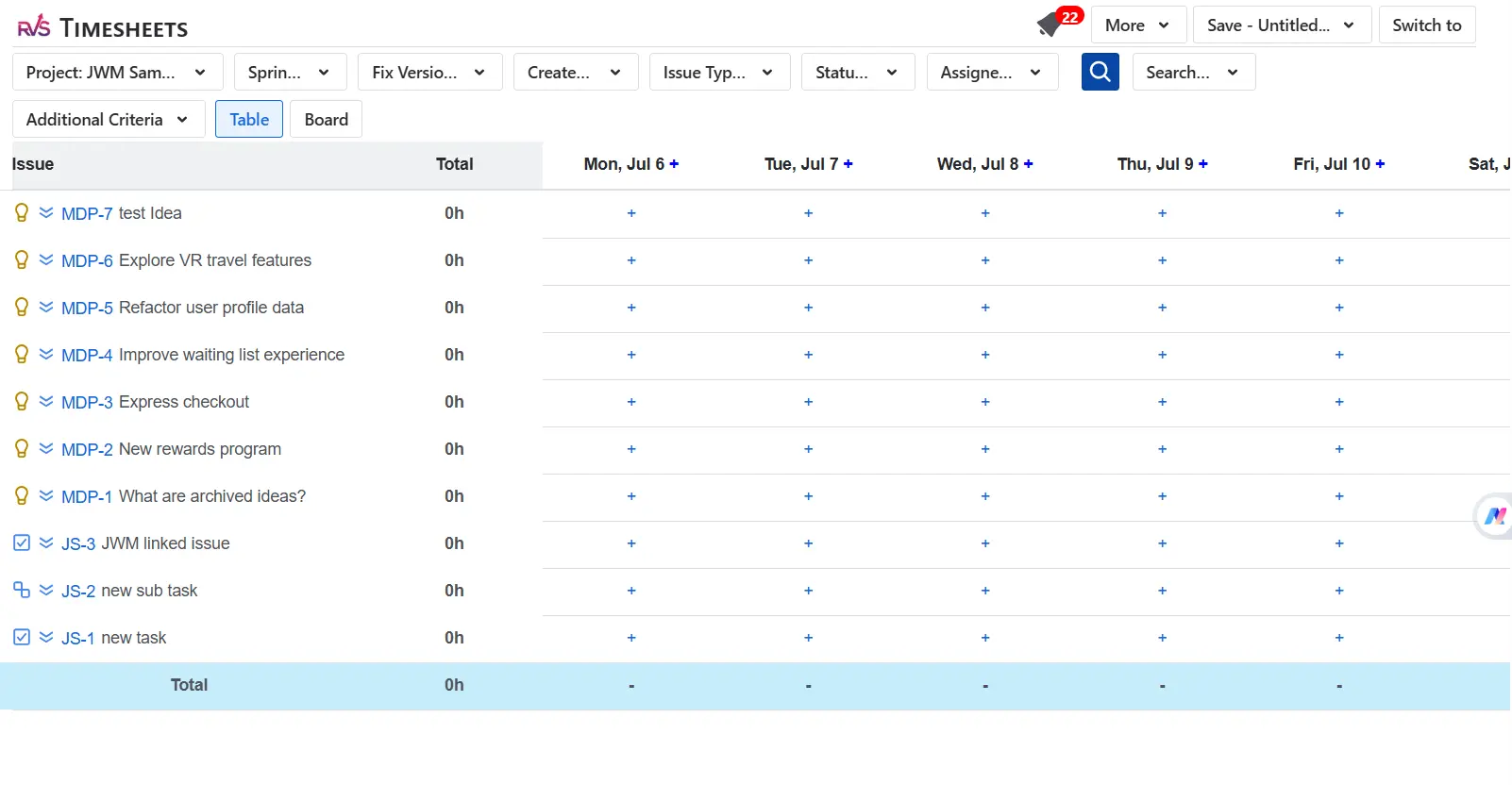
To create a report in Jira around logged effort, you need a way to tag that time with meaning. That's what Worklog Attributes do. Instead of a flat number of hours, admins can configure custom metadata on every logged entry:
● Billable or non-billable
● Cost center
● Any custom category your team tracks
That metadata is what actually makes it possible to create custom reports in Jira instead of settling for a raw timesheet dump.
● Estimated vs actual comparison, so a manager can see where estimates ran high or low without opening every issue
Scope matters here because this is where a lot of custom Jira reporting requests go wrong. A worklog-based report has no concept of status. It cannot tell you which workflow stage that time was logged against, and it was never designed to.
If you expect logged hours to map cleanly onto “In Progress” or “In Review,” you're asking a timesheet tool to do a workflow tool's job.
Example: Picture a five-person support team billing a client by the hour. Every agent logs time against tickets, and the manager tags each entry as billable or non-billable using Worklog Attributes. At the end of the month, the timesheet view rolls all of that up into one invoice-ready report, filtered by client project and date range.
That's a real, practical use of a custom timesheet report, and it has nothing to do with how long any ticket sat in a queue.
2. The Workflow Question
The second half of how to create a report in Jira that covers time tracking properly is workflow visibility, a completely different data problem. This is the job Time in Status Reports, a Jira time in status plugin by RVS Softek, is built to do.
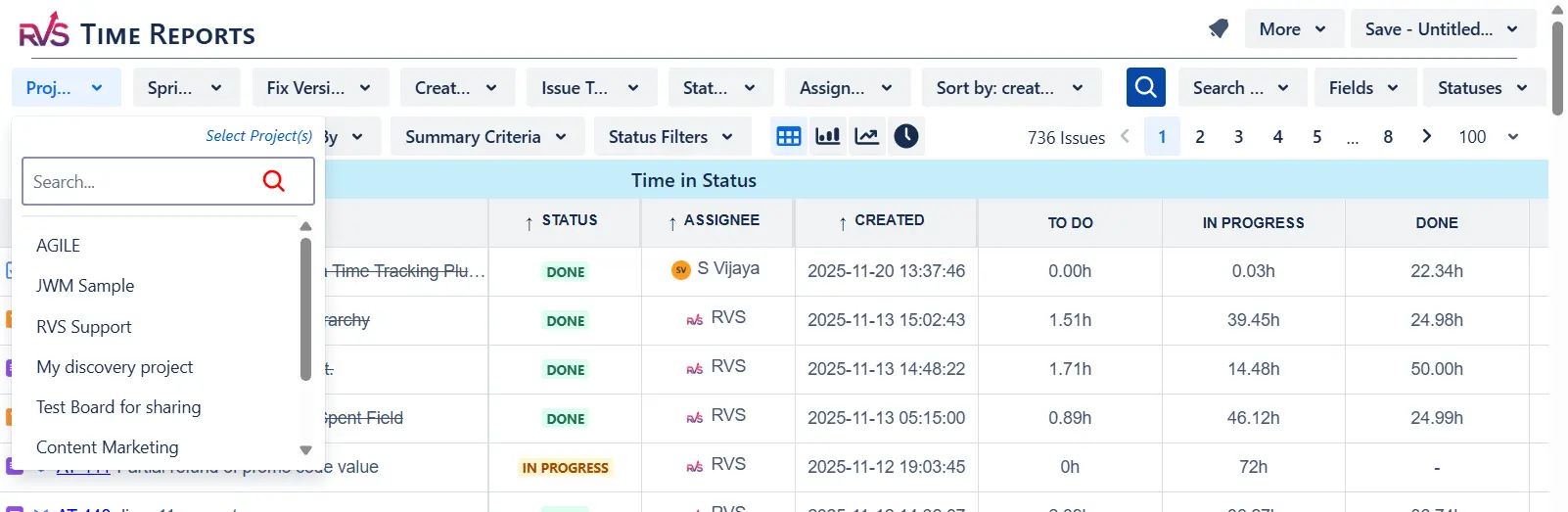
Time in Status Reports calculates status duration directly from an issue's transition history. Nothing is logged manually. The moment an issue moves from “To Do” to “In Progress,” the clock starts and keeps running until the next transition. With 20+ report types built around this mechanism, teams can create custom reports in Jira that show:
● How many times has an issue bounced back into an earlier stage
● Median and 85th percentile duration, for teams tracking SLA commitments
Just like the timesheet side, this workflow view has a clear boundary. It does not record manually entered time, and it cannot pull in worklog data. If someone spent two active hours on an issue while it sat in “In Review” for three days, Time in Status Reports will show you the three days, not the two hours. That's not a gap. That's the tool doing exactly what it's built to do: expose workflow bottlenecks, not personal effort.
Example: Now picture that same support team, but the question this time comes from an ops manager instead of finance: which stage of the ticket workflow is actually causing the SLA misses? A time in status report filtered to the support project, broken down by status, shows exactly where tickets pile up, whether that's "Awaiting Customer Response" or "Escalated to Engineering." The median and 85th percentile numbers tell the ops manager whether that pile-up is a one-off or a pattern worth fixing.
How to use Jira time tracking plugins to create custom reports
Once you accept that both time tracking plugins answer different questions, the process to create a custom time tracking report in Jira that covers both gets simpler. You're running two independent, purpose-built reports side by side, scoped to the same project and date range.
In practice, that looks like this:
● Resource manager or finance lead: Reads the timesheet view for logged hours against estimates and billable categories.
● Ops manager, QA lead, or support team lead: Reads the workflow view for where issues are getting stuck and whether SLA percentiles are holding.
How to get a single dashboard view of custom reports
Both views can sit on the same dashboard, refreshed on the same cadence, without either one pretending to be something it isn't. This is also the most honest way to create custom reports in Jira.
A simple way to set this up is a shared team dashboard with two gadgets side by side: a Time Spent Dashboard gadget pulling from the timesheet view on one side, and a Time in Status gadget on the other, both scoped to the same project and sprint.
Nobody has to open two separate tools or remember two logins. The dashboard becomes the one place people check, even though the two numbers behind it come from two different data models.
Exporting Your Custom Report
Once both views are set up, getting the data out is straightforward:
● Worklog Time Tracking & Timesheets: exports timesheet data to CSV and Excel, typically for finance or resourcing teams.
● Time in Status Reports: supports CSV and Excel export, plus a native JSON feed built for Power BI, so data teams can plug workflow metrics straight into an existing BI pipeline.
Which export a team reaches for usually depends on who's asking. A PM building a monthly resourcing summary exports the timesheet report to Excel. A data analyst building a company-wide operations dashboard pulls the Time in Status feed into Power BI alongside other process metrics. Neither export requires reformatting or manual cleanup first, since both reports are already structured before they leave Jira.
Building It the Right Way
Teams that successfully create a custom report in Jira and keep using it share a few habits:
Decide what the report needs to prove before configuring anything: A billing conversation needs the timesheet report tagged by cost center. A slipping release date needs the workflow report showing the time between statuses. Starting with the question keeps you from building filters you'll never actually use.
Set up Worklog Attributes early: So timesheet data is meaningful from day one, not a pile of unlabeled hours nobody wants to clean up six months later.
Configure the working calendar correctly: Before trusting any duration numbers coming out of Time in Status Reports, since weekends and holidays skew raw duration if the calendar isn't set.
Check the report on a schedule, not just when something breaks: A percentile is only useful compared against last sprint's or last month's number, so a one-off glance rarely tells you much on its own.
Treat the two reports as complementary instruments: Not competing answers to the same question, and not two versions of the same report that should somehow match.
Both time tracking plugins are built on native Atlassian Forge, so the data behind both reports stays inside your Jira environment the entire time. Nothing is processed on an external backend, which matters for teams with data residency requirements. Setup for either plugin takes minutes, not a configuration project.
Conclusion
There's no single screen in Jira that hands you a complete time tracking picture, and no single plugin should try to fake one either. A timesheet report and a workflow report are built to answer different questions, and keeping them separate is what makes each one trustworthy.
Worklog Time Tracking & Timesheets and Time in Status Reports are two of several plugins RVS Softek builds for Jira teams, each one purpose-built rather than bundled into a do-everything suite. Run both side by side, and you'll have a genuinely custom report, without asking either tool to guess at data it was never built to hold.
Frequently asked questions
How do I create a report in Jira that shows both logged time and workflow data?
You don't get this from a single report. Create a report in Jira for logged time using Worklog Time Tracking in Jira & Timesheets, then create a separate report for workflow duration using Time in Status Reports. Run both scoped to the same project and date range, and read them side by side rather than expecting one screen to cover both.
Can native Jira create custom reports in Jira without a plugin?
Not at any real level of detail. Native Jira only offers Original Estimate, Remaining Estimate, and Time Spent fields on individual issues. There's no cross-project timesheet view, no percentile calculation, and no status-duration breakdown, so most teams need a dedicated plugin to create custom reports in Jira that go beyond single-issue numbers.
What's the difference between a timesheet report and a time in status report?
A timesheet report shows how much time people logged and against what, using Worklog Attributes for context like billable status or cost center. A time in status report shows how long an issue sat in each workflow stage, calculated from transition history. They run on separate data models and don't share or merge data.
How to create a report in Jira that tracks SLA percentiles?
Time in Status Reports includes median and 85th percentile calculations as built-in report types. These are calculated from status transition timestamps, so no manual logging is required. This is typically the fastest way to create a report in Jira for support or QA teams tracking SLA commitments.
How to create a report in Jira for client billing or invoicing?
Use Worklog Attributes to tag logged time as billable or non-billable, and optionally by cost center or client tag, at the point of logging. The timesheet view then rolls that tagged data up into an invoice-ready report, filtered by project, assignee, or date range.
Can I export a custom Jira time tracking report to Power BI or Excel?
Yes. Worklog Time Tracking & Timesheets exports to CSV and Excel. Time in Status Reports supports CSV and Excel export as well, plus a native JSON feed built specifically for Power BI, so workflow data can feed directly into an existing BI pipeline.
Do these plugins work on both Jira Cloud and Jira Data Center?
Yes. Both Worklog Time Tracking & Timesheets and Time in Status Reports support Jira Cloud and Jira Data Center, and both are built on native Atlassian Forge, so data stays inside your Jira environment regardless of which deployment you're running.
Recent Blogs
July 23, 2026
Jira Time in Status Report: Complete Guide for Project Managers





.webp)

.webp)
.webp)
.webp)





