The Problem: Native Jira only logs time at the issue level, making it difficult to understand overall effort distribution, team capacity, and sprint-level workload across projects.
The Insight: Manual time tracking works better for teams that don’t need continuous monitoring. A structured Jira timesheet plugin helps turn raw worklogs into a clear, consolidated view for analysis and reporting.
The Fix: With Worklog Time Tracking & Timesheets (by RVS Softek for Jira), teams can convert scattered worklogs into unified timesheets, compare estimated vs actual effort, and gain actionable visibility into workload, planning gaps, and team performance.
Automation gets all the marketing attention in Jira time-tracking:
Timers that start when you open a ticket
Browser extensions that log hours in the background
And AI that "predicts" how long a task took.
It sounds great on a sales page. But not every team needs that level of tracking.
Manual logging still holds up well for smaller teams with simple, predictable schedules, and even on larger teams, it's a good fit wherever the actual requirement is narrower.
Automated timesheet tracker assumes every minute of the day needs to be tracked, which only fits teams that log time continuously across all work. Many teams don’t operate this way. A developer may only need to log hours for a few specific tickets in a sprint, while the rest of the day goes into meetings, code reviews, or work that doesn’t require time tracking in Jira.
Worklog Time Tracking & Timesheets (by RVS Softek for Jira) follows this approach by focusing on manual worklogs instead of stopwatch-style tracking, making it better suited for task-specific tracking needs and improving cross-team collaboration through clearer, shared visibility of effort across projects.
This blog covers:
How to set up timesheets for employees in Jira without any automation
How to log work manually the right way
How to read a Jira timesheet by user once the data starts coming in.
What "Timesheets for Employees" Actually Means in Jira
Jira itself doesn't ship with a true timesheet feature. Here's what that actually looks like in practice:
You can log work against individual issues using the native "Log Work" field
Jira gives you no consolidated view, no single screen that shows how an employee, or a whole team, has logged time across multiple issues over a week or a sprint
To see that picture, you'd have to click into every ticket one at a time and manually total it up
That's the problem timesheets for employees are meant to solve: a single, readable view of who logged what, when, and against which task. Worklog Time Tracking & Timesheets builds that view directly on top of Jira's existing worklog data, so nothing about how your team already works has to change.
Setup takes minutes, not a sprint, and there's no migration of historical worklogs required to start seeing value. The Timesheet View pulls all logged entries onto one screen, filterable by date range, project, or assignee, so a manager doesn't have to reconstruct a report from scratch every Friday.
How to Log Work Manually in Jira With Timesheet Plugin By RVS Softek
Worklog Time Tracking & Timesheets (by RVS Softek for Jira) is a Jira timesheet plugin and Jira reporting tool built around structured manual worklogs rather than automated timers. It helps teams log time directly on issues and consolidates those entries into a single, readable timesheet view without requiring external spreadsheets or background tracking tools.
If your team wants timesheets without automation, the actual workflow is refreshingly simple. Here's how it works:
Step 1: Set the original estimate. Before any tracking starts, the assignee adds an Original Estimate to the issue, say, 8 hours for a task. This becomes the baseline you'll compare actual time against later.
Step 2: Log work manually as the task progresses. Instead of running a timer, the employee opens the issue and enters time spent directly, hours after a morning session, 3 more after lunch, and so on. There's no autostart, no autostop, no background tracking running whether you remember it or not. You log what you did, when you did it. This is the core of what it means to Jira log work manually: deliberate, task-by-task entries instead of passive capture.
Step 3: Add context with Worklog Attributes (Advanced license). If your team is on the Advanced subscription, each worklog entry can carry extra detail, a text field, a dropdown, or a checkbox set up by anyone on the plan, not just admins. This is optional when logging, so it doesn't slow anyone down who just wants to log a quick entry. But for teams that want a bit more than raw hours, this is where that detail lives. Worklog Attributes are filterable in both the Timesheet View and Worklog Reports, so that context isn't just decorative; it's usable later.
Step 4: View it all in the Timesheet View. Once entries start accumulating, the Timesheet View turns them into a readable report, no manual spreadsheet building required.
How Worklog Time Tracking & Timesheets by RVS Softek Benefits Your Team
Once logging becomes a habit, the real value shows up in what you can do with the data. Here's what each feature actually does for a team tracking time manually, not automatically.
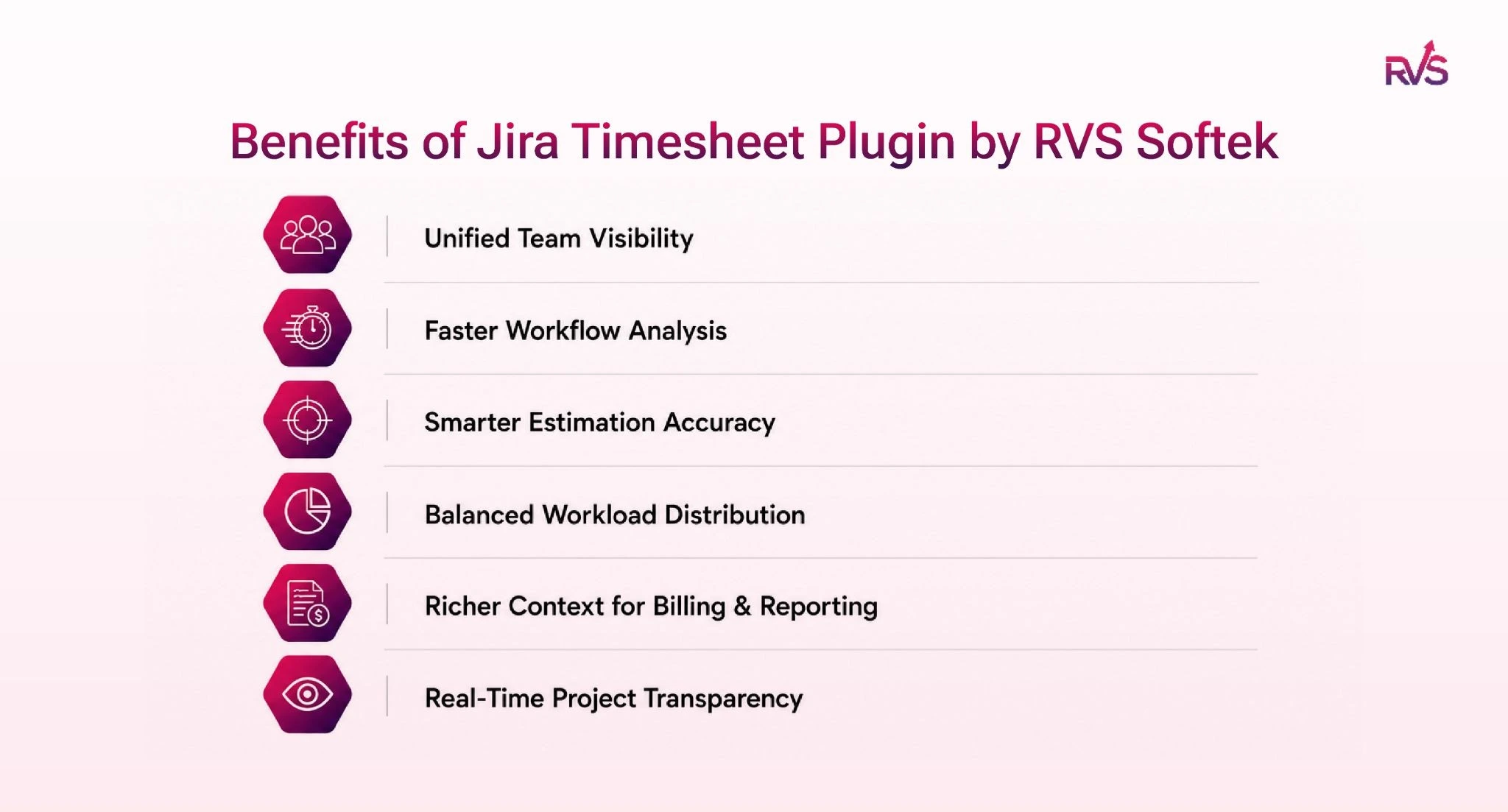
Unified Team Visibility (Timesheet View):
See every team member and project in one consolidated view with all logged time in real time. Instead of jumping between tickets or exporting spreadsheets, managers instantly understand effort distribution across users and workstreams. Drill down to individual Jira timesheets or zoom out for full team visibility.
Break down worklogs by sprint, assignee, project, or issue type to instantly identify where time is being spent. This helps teams catch effort-heavy tasks early in the sprint instead of reacting after delivery, enabling faster course correction and smarter workload planning.
Smarter Estimation Accuracy (Estimated vs Actual Tracking)
Compare planned hours with actual logged effort on every issue to uncover estimation gaps. Because time is manually logged, the data reflects real execution, not automated assumptions, helping teams refine sprint planning with every iteration.
Balanced Workload Distribution (Team-Level Time Summary)
Get instant clarity on who is overloaded and who has available capacity. This helps managers redistribute work early, reduce burnout risk, and maintain consistent delivery across the team.
Richer Context for Billing & Reporting (Worklog Attributes)
Add structured context like billable status, customer tags, or activity type at the time of logging. This ensures time data is immediately usable for invoicing, client reporting, and internal analysis without additional cleanup.
Track hours logged vs estimates directly on Jira dashboards. Stakeholders get live visibility into progress without asking for status updates, making reporting continuous and self-serve instead of manual.
Together, these six features are what turn a pile of manually logged hours into a working timesheet for an employee system, without a single automated timer running in the background. None of them requires anyone to log work manually any differently than they already do; they just make the data usable afterward.
When Manual Time Tracking Is the Right Call
Worklog Time Tracking & Timesheets doesn’t offer automatic time capture. It’s not designed for passive, all-day tracking, and that limitation is intentional.
When choosing the right time tracking approach in Jira, the key is understanding how your team actually works. Manual logging works better when only specific tasks need time tracking in Jira. Users log work directly in Jira, avoid timer overhead and missed stop/start errors, and generate clean timesheets based on actual reported effort.
The key decision point is simple: if most tasks require continuous tracking, an automated solution may fit better. But if only select tasks matter for billing, estimation, or reporting, a manual approach is often more accurate, lighter, and easier to adopt.
Frequently asked questions
What is the RVS Worklog Timesheet, and how does it work inside Jira?
Worklog Time Tracking & Timesheets (by RVS Softek for Jira) is a Jira timesheet plugin that enables structured time tracking in Jira using manual worklogs instead of automated timers. Users log time directly on Jira issues using the native “Log Work” feature, and the tool consolidates all entries into a unified timesheet view. This makes time tracking in Jira more transparent by showing who logged what, when, and against which task—without changing how teams already work.
Does RVS Worklog Timesheet support both Jira Cloud and Jira Data Center?
Yes, the tool supports both Jira Cloud and Jira Data Center environments. Whether teams are using cloud-based or self-hosted Jira, this jira timesheet plugin ensures consistent time tracking in Jira with the same reporting structure, dashboards, and worklog-based timesheet views across deployments.
Does RVS Worklog Timesheet support Kanban-style time entry?
Yes, it works seamlessly with Kanban boards in Jira. Since time tracking in Jira is issue-based rather than workflow-based, users can log work directly from Kanban cards at any stage of the workflow. This ensures the jira timesheet plugin remains effective even for teams that don’t use sprint-based planning.
Does RVS Worklog Timesheet offer customizable, real-time dashboards?
Yes, it provides real-time dashboards that can be tailored to team or project needs. Users can track logged hours, estimated vs actual time, and workload distribution in real time. These dashboards make time tracking in Jira more actionable by giving managers instant visibility without exporting data or building external reports.
How is manual time tracking in Jira different from using automated timers?
Manual time tracking in Jira requires users to log hours directly against issues, while automated timers track activity in the background. The jira timesheet plugin follows the manual approach, which reduces noise, avoids missed or forgotten timers, and ensures only meaningful work is recorded for reporting and billing.
Can teams generate employee timesheets without using automation in Jira?
Yes, teams can generate complete employee timesheets without automation using this jira timesheet plugin. All logged work is aggregated into a structured timesheet view, allowing managers to analyze effort across users, projects, and sprints without relying on passive tracking tools.
Why is Worklog-based time tracking preferred for some Jira teams?
Worklog-based time tracking in Jira is preferred by teams that don’t require continuous monitoring throughout the day. Instead of constant tracking, they focus on selective logging for specific tasks. The jira timesheet plugin supports this approach by offering clean reporting, estimated vs actual analysis, and flexible time tracking in Jira without automation overhead.
Recent Blogs
July 23, 2026
Jira Time in Status Report: Complete Guide for Project Managers







.webp)





